
Clone Hero Steam Deck Setup: Install, Songs & Controllers
This Clone Hero Steam Deck guide covers the official Linux release, Desktop Mode installation, adding the game to Steam, internal and microSD song paths, guitar mapping, Gaming Mode, and a small first-launch test. It keeps Steam Deck details together while linking to the site's broader Linux, songs, controller and update guides.

Yes, Clone Hero can run on Steam Deck through the official Linux build
The official Clone Hero site lists Linux as a supported platform, and the releases page checked on November 15, 2026 listed v1.1.0.6161, released November 13, 2026. Steam Deck uses SteamOS, so the practical path is to switch to Desktop Mode, download the current Linux package from the official release page, extract it into a user-owned folder and test the game before importing a large library.
The safest Clone Hero Steam Deck setup separates four jobs: install the game, add its executable to Steam, choose a writable Songs location and configure the controller. Use the official release page as the download destination. It is a stable page for the current package even when the actual asset redirect changes. Do not treat a random all-songs bundle, modified executable or paid launcher as the normal official route.
Open the official Clone Hero Steam Deck download route
Official Linux release
The release page checked on November 15, 2026 lists v1.1.0.6161 and the Linux package.
Open release pageSteam Deck reference
Use the Linux and data-location guides after the clean first launch.
Read Linux guideCan Clone Hero run on Steam Deck?
The platform answer is yes; the reliable setup depends on the current Linux package, a writable data path and the input device you actually plan to use.
The official homepage names Linux among the supported Clone Hero platforms and says the game accepts five- or six-fret guitar controllers, MIDI drums, game controllers and a keyboard. That makes Steam Deck a practical Linux target, but it does not guarantee identical behavior for every SteamOS update, dock, display, receiver or wireless adapter. Start with the device in your hands and a small test library.
The phrase Clone Hero Steam Deck hides several different tasks. A player may need to leave Gaming Mode, download the Linux build, make the executable usable, add it as a Non-Steam Game, find a hidden .clonehero directory, move Songs to a microSD card, map a Wii guitar and then return to Gaming Mode. A generic Linux page or a controller list cannot show that whole sequence in the order a new Steam Deck owner needs. This Clone Hero Steam Deck workflow keeps those device steps together.
Steam Deck is also a good place to keep the application and the chart library separate. The game package can be replaced without deleting your Songs or Custom backup, while the microSD card can hold a large library that is easier to move between installations. The separation makes a missing-song problem easier to identify than reinstalling the game repeatedly.
| Question | Safe answer | What to check |
|---|---|---|
| Is there an official Steam Deck build? | There is an official Linux release that can be used on SteamOS. | Confirm the current Linux package on clonehero.net/releases. |
| Does every Deck behave the same? | No. SteamOS, dock, display, storage and controller paths can change the result. | Test the actual Deck, display and controller you will use. |
| Does the game download include songs? | No. The application and community charts are separate. | Use a trusted chart source and keep a complete backup. |
| Do I need a guitar immediately? | No. Keyboard or built-in controls give you a clean first-launch baseline. | Add a receiver or adapter after the game and one chart work. |
Download the official Linux release for Steam Deck
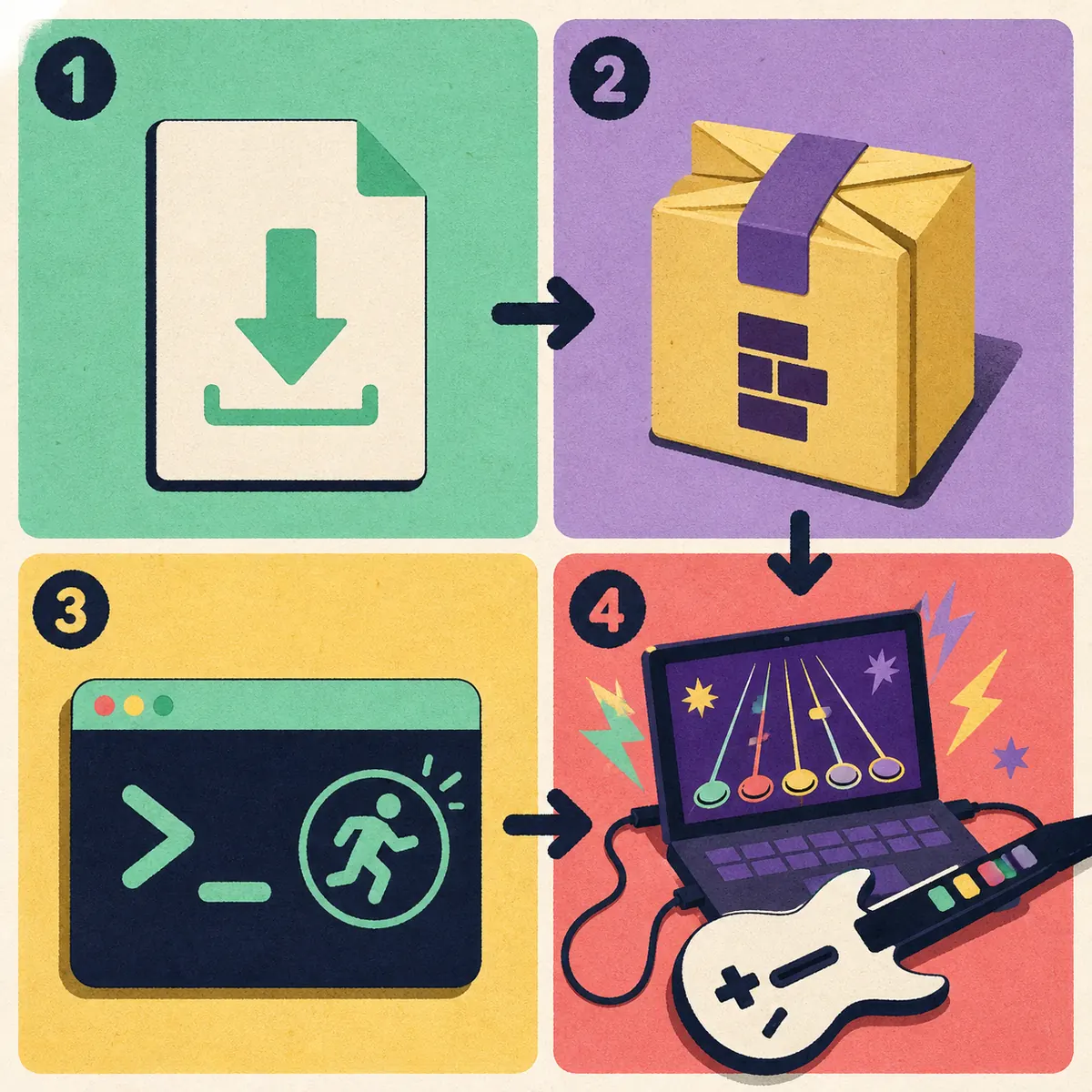
Switch to Desktop Mode with the Steam button, choose Power and select Switch to Desktop. Open the browser there and go to the official Clone Hero releases page. At the time of this check it showed v1.1.0.6161 dated November 13, 2026. The page is the source of truth for the package name, release notes and any changed asset links; this guide does not claim that a temporary signed redirect is a permanent direct file URL. That keeps the Clone Hero Steam Deck download step tied to the publisher-controlled release.
Download the Linux x86_64 standalone package into Downloads, then extract it into a folder you own. An internal folder such as ~/Games/CloneHero is easy to test, while a microSD folder can be useful after the application is known to work. Keep the extracted files together. Do not run an unknown installer, a premium bootloader or an archive that promises a commercial song library.
If the release page changes its labels, use the current page rather than copying the old filename into a command. The verified version is included near the top of this article for freshness, but the official source remains the safer place to check each time you update.
- 1
Open Desktop Mode
Use Steam > Power > Switch to Desktop. Keep the browser and file manager available while you install the package.
- 2
Check the official version
Open clonehero.net/releases and confirm the Linux asset under the newest release. Do not rely on an old forum attachment or a modified bundle.
- 3
Extract to a user-owned folder
Extract the archive into internal storage or a prepared microSD folder. Avoid a system directory that requires elevated permissions.
- 4
Run the executable once
Open the extracted folder, allow the file to run if the desktop asks, and launch with the keyboard before changing controller or graphics settings.
- 5
Record the working path
Write down the game folder and the active Songs location before adding a large library or creating a Steam shortcut.
Install in Desktop Mode and add Clone Hero to Steam
After extraction, launch Clone Hero directly from the file manager. A first launch should be intentionally simple: default visuals, the Deck keyboard or built-in controls, one audio output and one known-good chart. If the game opens, responds and plays audio, you have separated the application layer from later controller and library questions.
To make the game easy to start, right-click the working executable in Desktop Mode and choose Add to Steam when the option is available. If the desktop offers a different label, add the executable as a Non-Steam Game from Steam's library dialog. Keep the launch target pointed at the extracted folder; moving only the executable can break its supporting files or working directory.
Return to Gaming Mode only after the Desktop Mode launch works. In the Steam library, find the Non-Steam Game entry, open its properties and check the shortcut target if it refuses to start. A shortcut problem is separate from a broken release package, so test the executable directly again before downloading another copy.
- Keep the Clone Hero folder and its supporting files together after extraction.
- Use a user-owned path so the game can create data without sudo or root access.
- Store the shortcut after the direct Desktop Mode launch has passed.
- Do not create two shortcuts that point to different copies while troubleshooting.
- Record the release tag and folder location before importing a large library.
| Symptom | Likely layer | Next action |
|---|---|---|
| Executable will not run | Permission, incomplete extraction or missing support file | Re-extract, allow the file to run and launch from the complete folder. |
| Desktop launch works but Steam entry fails | Shortcut target or working directory | Check the Non-Steam Game properties and compare the target with the working file. |
| Game opens but the screen is blank | Display or graphics setting | Return to default visuals and test windowed mode before changing one option at a time. |
| Audio works in Desktop Mode only | Gaming Mode output route | Select the correct Deck, dock or Bluetooth output after returning to Gaming Mode. |
| Game starts but no songs appear | Songs path or scan state | Find the active folder in the game, add one complete chart and scan again. |
Put Songs on internal storage or a microSD card
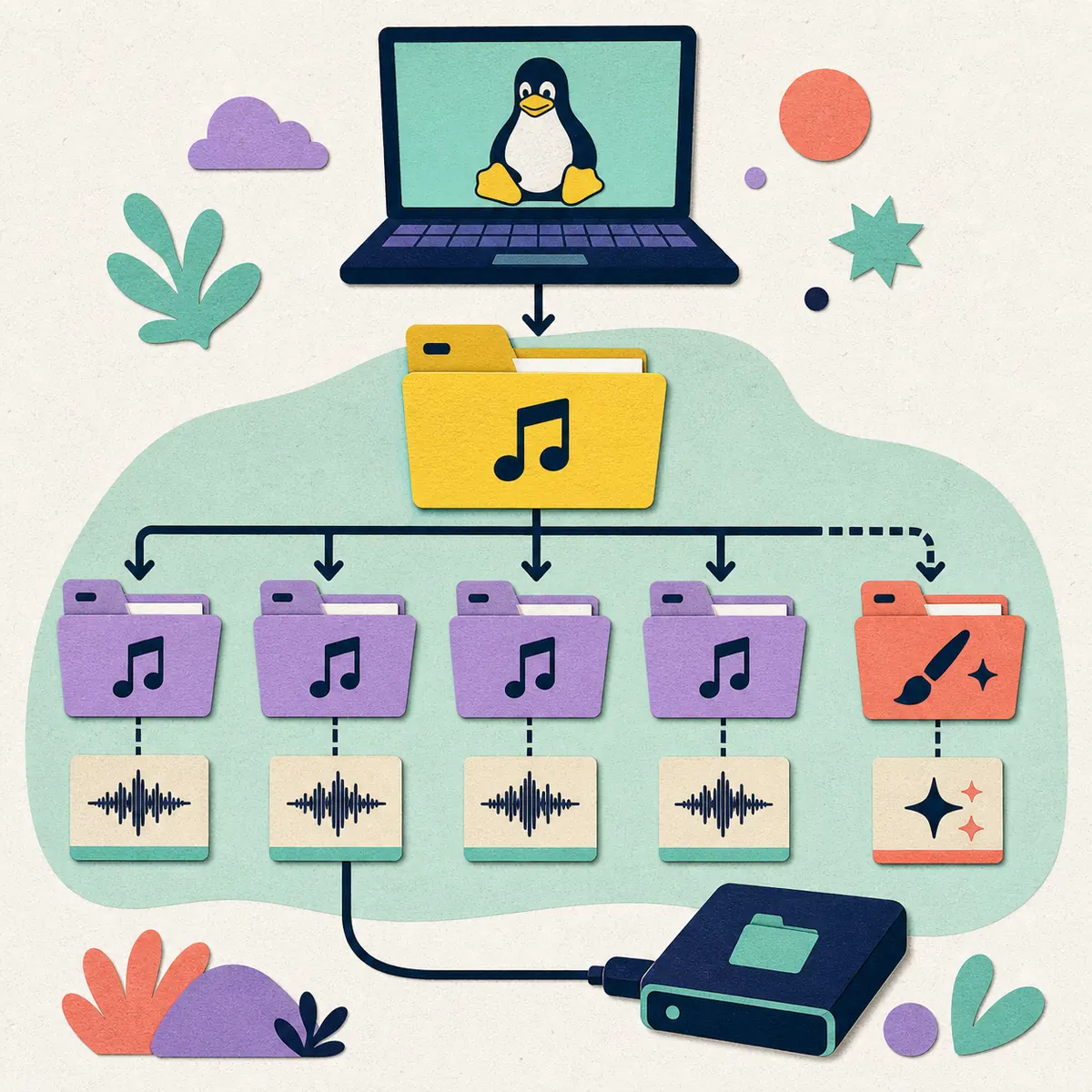
A common Steam Deck mistake is treating the extracted application folder as the active song library. Clone Hero may use a hidden data directory such as .clonehero under the home folder, or a path you selected inside the game. Turn on hidden files in the file manager and confirm the path from the game's folder control or the official Wiki Data Locations reference.
For a microSD library, insert and mount the card before launching, create a clear Songs directory and keep the card's path stable. Copy one complete chart folder first. A valid folder keeps its chart files, song.ini and audio together; an archive left unopened or an extra nested directory can make a download look broken when the real issue is folder depth.
The site's How to Add Songs guide covers the general archive and scan workflow. This Steam Deck page adds the device-specific checks: Desktop Mode file access, hidden paths, removable storage and the need to test the same card from Gaming Mode. For a Clone Hero Steam Deck song location, confirm the mounted path instead of relying on a copied screenshot. Back up Songs, Custom and important settings separately from the game folder before an update.
- Add one chart and run Scan Songs before copying a whole pack.
- Read badsongs.txt or the scan feedback when a chart is rejected.
- Connect the microSD card before starting the game so the path is mounted.
- Do not delete the old library until songs, audio and custom content load from the new path.
- Keep the working application folder separate from the library backup.
| Item | Purpose | Steam Deck check |
|---|---|---|
| Extracted game folder | Executable and supporting files | Keep it together and use the same target in Desktop and Gaming Mode. |
| Hidden data directory | Default or user-selected settings and Songs path | Show hidden files and confirm the actual path in the game. |
| microSD Songs folder | Large chart library outside internal storage | Mount the card before launch and avoid changing its directory name. |
| Complete song folder | Chart data, song.ini and audio for one song | Extract the archive and remove accidental extra nesting. |
| Backup copy | Recovery after migration or card failure | Store it separately and test that it contains a readable chart. |
Configure a guitar, gamepad or keyboard
The keyboard is the cleanest baseline because it removes receiver, Bluetooth, adapter and driver variables. Once a chart plays, connect the controller path you actually want to use. A Guitar Hero logo alone does not prove that a console dongle, wireless bridge or third-party adapter will be exposed to SteamOS in the expected way.
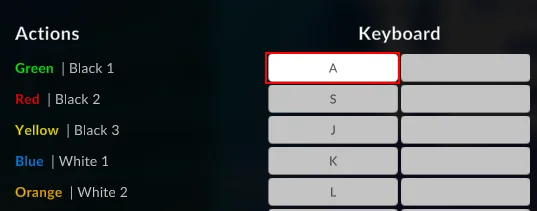
If the controller appears in Desktop Mode but not in Gaming Mode, compare the Steam Input settings and the Non-Steam Game shortcut. If it appears to Linux but the game maps the wrong buttons, assign the player and map fret, strum, Start, Select, tilt and whammy one input at a time. The site's Clone Hero Controller Guide covers broader hardware choices; this page keeps the Steam Deck hand-off visible. A good Clone Hero Steam Deck controller test changes one input path at a time.
A controller that works in the menu can still feel late in a chart. Test audio and input timing with default visuals, then use the site's calibration guide if the delay is consistent. Do not change the installation, graphics, receiver and timing offset all at once because you will lose the useful baseline.
| Symptom | Likely layer | Next action |
|---|---|---|
| Keyboard works, guitar fails | Receiver, adapter or Steam Input path | Confirm system detection, then test the controller from the same shortcut. |
| Guitar is detected but buttons are wrong | Player assignment or mapping | Map one fret, strum, Start and Select input at a time. |
| Menu works but notes feel late | Audio route or timing offset | Use one known chart and calibrate after confirming the output device. |
| Controller works in Desktop but not Gaming Mode | Shortcut or Steam Input profile | Compare the Non-Steam Game entry and its controller layout. |
| Bluetooth disconnects during play | Power, pairing or wireless interference | Test a wired path or receiver before changing game settings. |
Switch to Gaming Mode and test one chart
When Desktop Mode works, use the desktop's Return to Gaming Mode control or the Steam menu. Open the Non-Steam Game entry and check that the same executable starts. Steam Deck may route audio to the handheld speakers, a dock or Bluetooth device, so select the intended output before judging the game silent.
Run one complete chart from the active Songs path. Confirm menu input, note input, audio, display and exit behavior. A clean result is more useful than a long session because it tells you that the package, path and input can work together. This final Clone Hero Steam Deck check gives you a baseline before you copy additional songs, switch to a large display or enable extra visual assets.
If the game opens but the library is empty in Gaming Mode, return to Desktop Mode and compare the path visible there with the path the game uses. Gaming Mode may be starting a different shortcut or a different copy of the executable. Fix the target or path before reinstalling.
- 1
Return to Gaming Mode
Use the system control after the direct Desktop Mode launch works; do not switch modes while the first extraction is still incomplete.
- 2
Open the same Non-Steam entry
Start the shortcut that points to the tested executable and verify that it opens the same release folder.
- 3
Select the intended audio output
Check handheld, dock and Bluetooth output before deciding that the game has no sound.
- 4
Play one known-good chart
Test menu input, note input, audio and exit with one complete chart before adding a library pack.
- 5
Record the result
Note the working shortcut, Songs path, controller and output device so a later update can be compared.
Fix missing songs, input, audio and display problems
When something fails, classify the layer before changing files. An empty setlist points to the active Songs path or scan; a chart that plays briefly points to the chart package or audio; a dead guitar points to system detection, Steam Input or mapping; a silent screen in Gaming Mode points to the shortcut, display or graphics path. The site's Clone Hero Troubleshooting guide covers the cross-platform checks below this device-specific sequence.
For a missing library, show hidden files, confirm the mounted microSD path, open the game's current folder control and scan one complete chart. For a controller problem, return to the keyboard baseline, compare Desktop and Gaming Mode and map a single button. For audio or display problems, test the handheld output and windowed/default visuals before calibration. This Clone Hero Steam Deck troubleshooting order keeps the evidence readable and makes rollback possible.
Keep a copy of the working game folder and library while diagnosing. The official release page is the right place to check a new version; an unknown replacement binary can hide the original problem and make a later update harder to audit.
- Do not run the game as root to hide a path or permission error.
- Do not let two installations write to the same library while comparing versions.
- Keep the official release page, version tag and package path in your notes.
- Use a small chart test before importing a pack or enabling custom visuals.
- If a problem remains, record the SteamOS mode, shortcut target, path, controller and exact symptom.
| What you see | First check | Recovery path |
|---|---|---|
| No songs in the setlist | Active path, hidden directory, microSD mount and scan | Add one complete chart to the confirmed path and scan again. |
| Song appears but stops quickly | Archive depth, song.ini and audio files | Replace the test chart with a complete folder and read scan feedback. |
| No guitar input | System detection, Steam Input and player mapping | Return to keyboard, test wired input and map one control at a time. |
| No audio in Gaming Mode | Output route and shortcut context | Select the handheld/dock output and compare with Desktop Mode. |
| Black screen or flicker | Display mode and graphics defaults | Test windowed/default visuals and change one option at a time. |
| Update broke the library | New shortcut or changed Songs path | Keep the old folder, restore the backup and reconnect one path at a time. |
Clone Hero Steam Deck FAQ
Can you play Clone Hero on Steam Deck?
Yes. Use the official Linux release in SteamOS Desktop Mode, test the executable and one chart, then add it as a Non-Steam Game for Gaming Mode.
What is the latest verified Clone Hero Steam Deck version?
The official releases page checked on November 15, 2026 listed v1.1.0.6161, dated November 13, 2026. Check the page again before each update because package links and notes can change.
How do I install Clone Hero on Steam Deck?
Switch to Desktop Mode, open clonehero.net/releases, download the current Linux package, extract it into a user-owned folder, run it once and add the working executable to Steam as a Non-Steam Game.
Where do Clone Hero songs go on Steam Deck?
Use the game's active folder control or the official Data Locations reference. A hidden .clonehero directory and a microSD Songs folder are common paths, but confirm the path on your own Deck instead of copying an old guide blindly.
Can I store Clone Hero songs on a microSD card?
Yes, if the card is mounted before launch and the game points to a stable directory. Test one complete chart first, keep song.ini and audio together and retain a separate backup.
How do I add a guitar controller on Steam Deck?
Start with the keyboard, confirm the game works, then connect the guitar or receiver and check SteamOS detection, Steam Input and Clone Hero player mapping. Map fret, strum and menu controls one at a time.
Why does Clone Hero work in Desktop Mode but not Gaming Mode?
Gaming Mode may use a different shortcut target, controller layout or audio output. Compare the Non-Steam Game target with the tested executable, select the intended output and try one chart again.
Will updating Clone Hero delete Steam Deck songs?
It should not when Songs, Custom and settings are backed up separately, but a safe update uses a fresh application folder, a small test and a rollback copy before reconnecting the full library.
Sources and verification
The official Clone Hero homepage and releases page were checked on November 15, 2026. The newest listed release was v1.1.0.6161, dated November 13, 2026.