
Clone Hero Launcher Download
Use this Clone Hero Launcher download guide to compare the official Launcher with standalone builds, confirm the source, protect your song folders and update without losing a working setup.
Use the Launcher if you want managed updates
The official Clone Hero website makes the Launcher its primary download route. Choose the Windows setup file, macOS DMG or Linux AppImage below. If you prefer a package you manage yourself, use the standalone downloads on the Clone Hero download homepage.
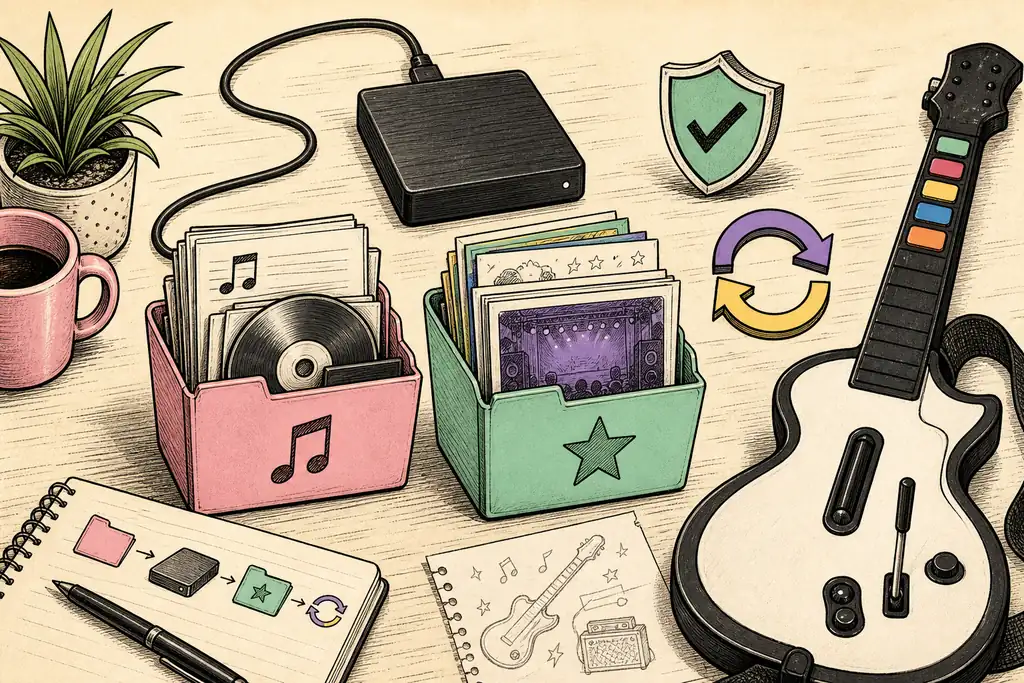
Back up Songs, Custom and settings before changing an existing installation. A launcher update should not be treated as a substitute for your own library backup.
Download the official Clone Hero Launcher
Windows 64-bit
Official chlauncher-setup.exe
Download LaunchermacOS
Official Clone Hero Launcher DMG
Download for macOSLinux
Official Launcher AppImage
Download AppImageClone Hero Launcher vs standalone download
Both options lead to the same game family; the difference is how installation and updates are managed. The Launcher reduces the need to revisit release assets, while standalone packages make the installed files and chosen location more explicit.
Neither option includes every community song. Your Songs and Custom folders remain user content, so back them up independently and follow the song installation guide after the game is working.
The practical Clone Hero Launcher vs standalone decision is about management, not access to songs. The Launcher helps manage releases; standalone makes the executable and install location explicit. Keep Songs and Custom backed up separately.
| Decision | Launcher | Standalone |
|---|---|---|
| Updates | Managed through the Launcher | You download and replace/update the package yourself |
| Initial setup | Installer or platform launcher package | ZIP, DMG, TAR or APK from the release page |
| Control over folders | Uses the Launcher's managed setup | Useful when you want an explicitly placed portable-style folder |
| Best for | Most players who want straightforward updates | Manual installations, portable organization or troubleshooting |
| Song library | Still separate from the game | Still separate from the game |
Install the Clone Hero Launcher
- 1
Choose your operating system
Use the official button above. The Windows setup is an EXE, macOS uses a DMG and Linux uses an AppImage.
- 2
Confirm the destination
The browser should show a clonehero-game GitHub release URL. Cancel if an advertisement or unrelated installer opens instead.
- 3
Run the platform package
Follow normal OS prompts. Linux users may need to mark the AppImage executable; macOS may show a security confirmation for a downloaded app.
- 4
Install Clone Hero
Open the Launcher, select the current release and let it finish before moving song content.
- 5
Configure and test
Start the game, create a profile and test input before importing a large library.
Updating and migrating without losing songs
Before an update, close Clone Hero and copy your Songs folder, Custom folder and settings to a backup location. This is especially important when migrating from pre-v1 or an older public test build because default locations and user-data handling changed across major versions.
After the update, launch once and use in-game controls to open the current default folders. Compare them with your backup before moving content. Do not create several conflicting copies of the same library and point the game to all of them; duplicate charts make scans and troubleshooting harder.
If the Launcher cannot update, check network access, available disk space and permissions, then compare the official release page. The standalone build is a legitimate fallback, not a cracked alternative.
If you are searching how to update Clone Hero Launcher, confirm the current release page first, close the game, back up user content and test the updated installation before reconnecting a large library.
Avoid fake launchers and bootloaders
Use the three official files listed on clonehero.net/launcher. A page offering a “premium launcher,” torrent bootloader, mobile mod APK or paid full-library installer is not the normal official acquisition path. Do not enter credentials or disable security tools for an unknown Clone Hero downloader.
The official Launcher is available for Windows, macOS and Linux. Android and iOS use the standalone release/TestFlight routes shown on the homepage. An absence of an Android Launcher button is not a reason to download a modified third-party launcher.
Plan a Launcher backup and rollback
Before using a Clone Hero Launcher download on an established setup, identify three things: the current game folder, the active Songs and Custom folders, and the location of settings or profiles you care about. Copy user content to a separate drive or backup directory while the game and Launcher are closed. A screenshot of configured song paths is also useful because an external library can remain intact while its path is forgotten after migration.
Do not assume that copying only the executable preserves a Clone Hero installation. The game can be downloaded again, but custom charts, organization, local scores, profiles and visual assets may exist in user-data locations. Open the current default folders from inside the working game and back up what those controls reveal. This is safer than relying on a path copied from another player's system.
If an update introduces a problem, keep the backup unchanged while testing. Confirm the official current release, try a clean standalone folder and launch it without importing the full library. If that clean build works, reconnect one song path and one custom-content group at a time. The test distinguishes a Launcher or update problem from a damaged chart, incompatible custom asset or stale setting.
A rollback should use an official release that you intentionally selected, not an anonymous “old version” mirror. Read the relevant release notes, keep the new backup and avoid opening the same writable library simultaneously from multiple installations. Scores and metadata can become difficult to reconcile when several versions change shared files.
After the updated installation is stable, document the version, install route and active paths. Remove abandoned duplicate folders only after the backup has been tested. This small record turns the next Clone Hero Launcher download or migration into a controlled update instead of another search for where the game stored its content.
Common Clone Hero Launcher download errors
| Symptom | Likely area | Useful next check |
|---|---|---|
| Installer will not open | Incomplete file or operating-system security prompt | Confirm the official GitHub destination and download the file again |
| Launcher cannot fetch a release | Network, firewall or service availability | Check connection and compare the official standalone release page |
| Game opens with no songs | Changed or missing song path | Open the current Songs folder, restore the configured path and scan |
| Update lacks custom visuals | Different active Custom folder | Locate the current folder, restore assets and rescan custom content |
| Two installations appear | Old standalone and new managed folders | Identify the active executable before deleting or moving either copy |
Clone Hero Launcher FAQ
Is the Clone Hero Launcher official?
Yes, when downloaded from clonehero.net/launcher or the clonehero-game GitHub release destinations used on this page.
Do I need the Launcher to play Clone Hero?
No. Official standalone builds are available. The Launcher is convenient for managed installation and updates.
Does the Launcher download songs?
No. The game and community song library are separate. Add charts through configured song folders and Scan Songs.
Will updating delete my songs?
User content should be kept separately, but always back up Songs, Custom and settings before updates or migrations.
Is there a Clone Hero Launcher for Android or iOS?
The official Launcher page lists Windows, macOS and Linux. Use the official Android APK or iOS TestFlight route from the standalone release page.
What if the Launcher does not start?
Check OS compatibility, permissions, available storage and security prompts. Use the official standalone release as a fallback while consulting the official installation guide.
Where can I download the Clone Hero Launcher?
Use the official Clone Hero Launcher page or the official clonehero-game release destination. Avoid modified launchers, bootloaders and downloaders that require unrelated permissions.
Clone Hero Launcher vs standalone: which should I choose?
Choose Launcher for managed installation and updates. Choose standalone when you prefer a visible folder and manual release control. Neither replaces a separate backup of Songs and Custom.
Sources and verification
Facts and download destinations were checked on August 12, 2026.