Clone Hero Calibration: Audio, Video and Input Lag Guide
Clone Hero calibration aligns the sound you hear, the notes you see and the moment the game accepts your strum. Use the built-in calibration screen first, then fine-tune audio offset and video offset with one repeatable chart. This guide separates timing problems from controller mapping problems so you can change one variable at a time.
Start with the built-in test, then split the offsets
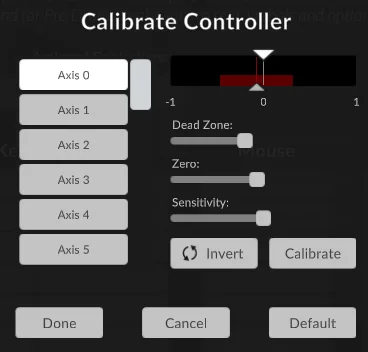
Open Settings > Gameplay > Calibration and run the calibration tool with a stable audio device and display. It listens for your strums against audio and visual cues and proposes a starting value. Treat that value as a baseline, not a permanent answer: the room, TV processing, controller path and your own timing can all change the result.
If notes feel early or late against the music, adjust audio offset. If the hit window looks displaced on screen, adjust video offset. Input lag can require a small, balanced change to both. Save the original values, test one chart, and roll back if the change makes the visual or audio cue less trustworthy.
What Clone Hero calibration fixes
Calibration is a timing workflow, not a universal repair button. Identify the layer that is wrong before changing a global setting.
The official Clone Hero calibration guide separates audio offset from the video hit window. Controller mapping and whammy calibration belong to the input layer; use the controller guide when a button or axis is not detected.
| Symptom | Setting to inspect | What the setting changes |
|---|---|---|
| You must strum ahead of the beat | Audio offset | Moves the note-to-sound relationship so the audible beat matches your action. |
| Notes disappear before or after the strike line | Video offset | Moves the visual hit window to account for display or input latency. |
| A whammy bar drifts or stops short | Controller calibration | Sets an analog zero, range, dead zone or direction; it does not change song timing. |
| Only one chart feels wrong | Chart, instrument or difficulty | Prevents a bad chart or missing audio stem from being hidden by a global offset. |
| Every chart is late on a TV | Display mode and both offsets | Reduces the effect of TV processing and a slow controller path. |
Run the built-in Clone Hero calibration tool
Use one audio output and one display for the first pass. Turn off extra Bluetooth speakers, virtual surround layers and screen mirroring while measuring. If your TV has a Game Mode, enable it before starting; otherwise the calibration value can describe a processing delay that you later remove.
The calibration screen averages offsets from your strums. A wide spread in the tick marks means the result may be noisy, so repeat only when you can follow both cues consistently.
After the tool finishes, play one familiar chart before importing a pack or changing controller bindings. Check whether sound, note position and strum now feel predictable.
- 1
Stabilize the setup
Connect the controller directly, choose the final audio device, enable TV Game Mode and close extra audio tools.
- 2
Open Calibration
Go to Settings, Gameplay and Calibration. Record the starting values before pressing the test control.
- 3
Follow both cues
Strum with the audio and visual prompts. Consistent timing matters more than a large sample.
- 4
Review and test
Treat the average as a starting point, then play one familiar chart before importing songs.
Set Clone Hero audio offset
Audio offset controls when the audible beat lines up with the chart. The official guide suggests using Get Hardware Latency as a starting point, then fine-tuning by ear. A reported hardware value is not a guarantee: Bluetooth codecs, USB interfaces, drivers and TV audio processing can add or remove delay after the measurement.
Use a chart with a steady beat. Set video offset to zero, listen to the click and strum exactly when you hear it. Adjust in small steps, writing down each change so you can compare rather than guess.
Headphones can simplify the first pass. Switch back to normal speakers afterward and retest if a receiver or soundbar is part of the audio chain.
- Increase audio offset when notes arrive early while sound arrives late.
- Decrease audio offset when notes arrive late while sound arrives early.
- Change only a few milliseconds and retest the same section.
- Do not use audio offset to hide a controller that is not registering strums.
Set Clone Hero video offset
Video offset moves the visual hit window to account for display latency and, in some setups, input latency. The official Wiki notes that a PC monitor often needs little or no video offset, while a TV may need more when Game Mode is disabled or the panel adds processing. These are soft guidelines, not promised presets.
Enable Show Hit Window and, if useful, the accuracy meter. Start at zero, strum as notes reach the strike line and watch where the hit window appears. Make one change, replay the same phrase and stop when the visual cue becomes easier to trust.
Do not chase a perfect screenshot. If a video value makes you play early against the music, return to the audio pass and confirm the audible beat.
- 1
Reduce display processing
Enable Game Mode, disable motion smoothing and use a direct display path when possible.
- 2
Start at zero
Turn on the hit-window overlay and play the same short phrase while strumming to audio.
- 3
Move in small steps
Adjust a little, repeat the phrase and keep the first value that makes the visual cue agree with sound.
Calibrate a TV or monitor for input lag
Input lag is the time between a physical strum and the game receiving or displaying it. Offsets can make a setup playable, but they cannot make a slow panel or wireless path faster. Aim for a stable compromise that keeps the beat trustworthy.
For a TV, enable Game Mode and remove unnecessary soundbar or receiver processing. For a monitor, use the most direct input and calibrate without a capture device. A wireless guitar, Bluetooth audio or long HDMI chain can each add delay, so change one part at a time.
The community laggy-TV workflow shows how to separate audio/video sync from input-lag compensation. It is an example, not an official preset.
| Setup | First action | What to avoid |
|---|---|---|
| Wired guitar + PC monitor | Start near zero and check audio first | Adding a large video value before testing |
| Wireless guitar + TV | Game Mode, direct receiver and one chart | Changing receiver, TV mode and offsets together |
| Bluetooth headphones | Compare with wired headphones | Treating codec delay as a controller fault |
Use a repeatable test and keep a rollback path
Choose one familiar chart with a steady rhythm. Keep note speed, controller, audio output and display unchanged. Replay the same short phrase to the audio and then at normal speed; a setting that helps one rushed attempt is not ready to keep.
Record the offsets and display mode after each change. If a song becomes harder, restore the last known-good pair; a new headset, adapter or TV input is a new timing path.
If every chart still feels wrong, inspect what calibration cannot fix: controller mapping, chart instrument and audio, current version and duplicate virtual inputs. Use the troubleshooting guide for those layers.
- 1
Pick one known-good chart
Use a steady beat and the instrument you actually play.
- 2
Change one value
Adjust audio or video offset, not both, unless testing a deliberate split.
- 3
Replay and record
Use the same phrase and note speed, then write down the value and result.
- 4
Restore before expanding
Rollback when the cue becomes less trustworthy; test other charts only after the setup repeats.
Troubleshoot common calibration symptoms
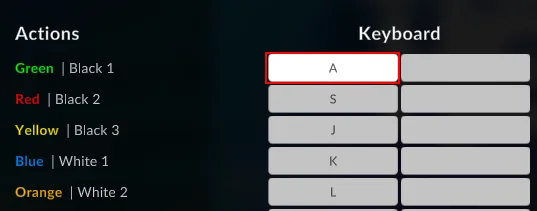
The fastest diagnosis is usually a smaller experiment, not a reinstall. Keep a known-good chart and previous settings available. If keyboard timing works but a guitar misses, return to receiver and mapping; if every controller has the same issue, return to audio and display.
| Symptom | Likely cause | Next check |
|---|---|---|
| Notes are early on every chart | Audio path or audio offset | Compare wired audio and adjust audio offset in small steps. |
| Notes look late but sound right | Display processing or video offset | Enable Game Mode, start at zero and watch the hit window. |
| Only one chart misses | Chart, instrument or audio files | Test a known-good song before changing global offsets. |
| Calibration values jump widely | Inconsistent strumming or unstable device | Connect directly and repeat when cues are clear. |
| Whammy drifts while timing is fine | Analog controller range | Use controller calibration and keep timing offsets unchanged. |
Clone Hero calibration FAQ
What is the best Clone Hero calibration setting?
There is no universal number. Run the built-in test, then tune audio and video offsets with a known-good chart on the exact display, audio device and controller path you use.
How do I fix Clone Hero audio delay?
Open Settings > Gameplay > Calibration, compare a steady chart with wired audio when possible and adjust audio offset in small steps until the audible beat matches your strum.
What does Clone Hero video offset do?
Video offset moves the visual hit window to account for display or input latency. Start at zero, enable the hit-window overlay and change it only after audio timing is stable.
Why is my TV worse than my monitor in Clone Hero?
TV processing, motion smoothing and soundbar routing can add latency. Enable Game Mode and calibrate the TV path separately.
Sources and verification
Calibration guidance was checked against the official Clone Hero Wiki and a community TV-latency workflow on October 23, 2026. The official releases page listed v1.1.0.6142, released June 1, 2026.