
How to Update Clone Hero Without Losing Songs
Use the official Launcher or a standalone release to update Clone Hero in a controlled order. Check the current version first, back up Songs and Custom, test a clean launch, and keep a rollback path before reconnecting a large library.
Check the release before you replace the installation
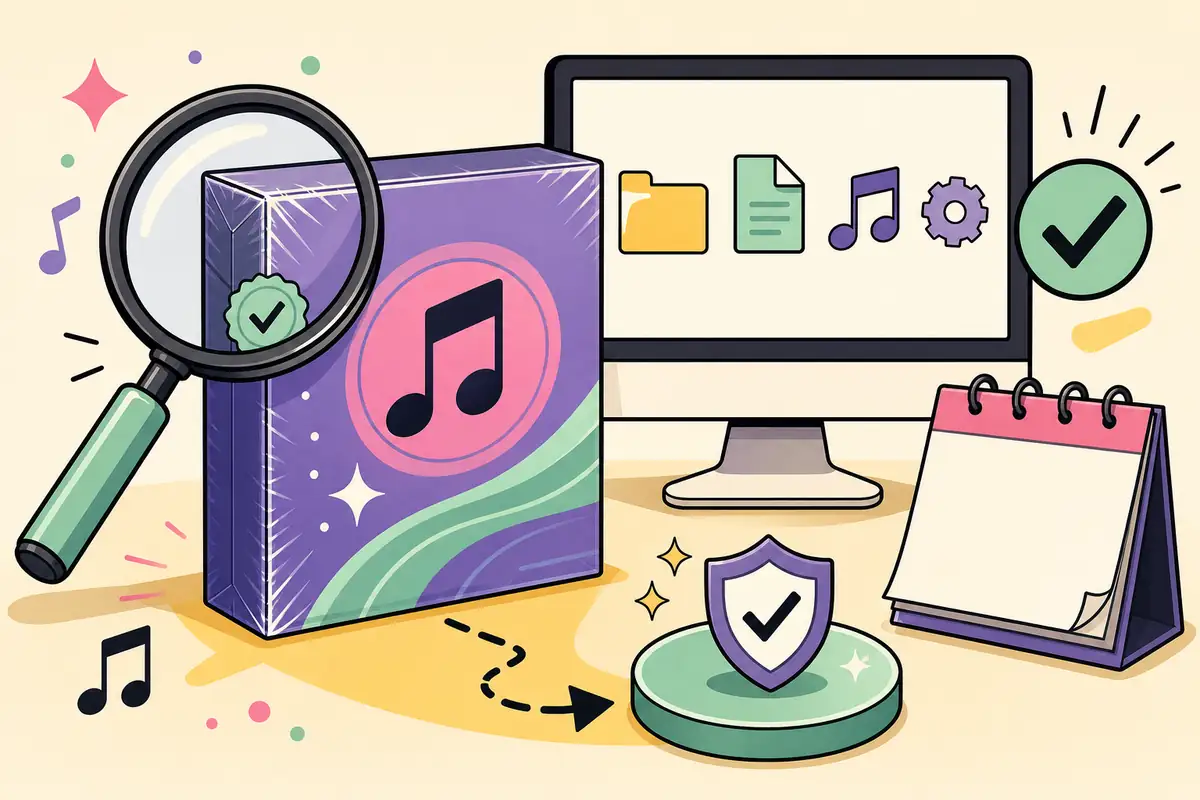
The safest Clone Hero update starts at the official homepage or release page, not at a random “latest version” mirror. On August 5, 2026, the official site still listed v1.1.0.6142 and the latest GitHub release was v1.1.0.6142-final. If your installed build already matches that release, there may be no game update to apply.
Close Clone Hero before changing files. Copy the active Songs folder, Custom folder, settings and any local scores to a separate backup location. Then choose the Launcher path or the standalone path below, test the game with a small library, and only remove an older installation after the new one works.
Check the current Clone Hero version and source
A version number is useful only when it is tied to a publisher-controlled destination and a package that matches your platform.
Open the official Clone Hero homepage and Releases page in a new tab. The homepage displayed v1.1.0.6142 when this page was checked, while the GitHub release tag includes the “-final” suffix. Treat those as the same verified release family, not as two different updates.
The official release assets are platform-specific. Windows uses CloneHero-Win-x64.zip, macOS uses the v1.1.0.6142-final DMG, Linux uses Linux.x86_64-Standalone.tar, and Android uses the official APK. The asset names and sizes are useful checks, but a signed redirect URL from GitHub is temporary; use the stable release URL rather than copying that redirect into a guide.
Do not download a file that calls itself a premium launcher, a full commercial song library, a torrent bootloader or a modified mobile package. An update guide should help you verify the game package and preserve your own content, not encourage an unknown executable.
| Platform | Verified package | What to confirm before updating |
|---|---|---|
| Windows | CloneHero-Win-x64.zip | Official release tag, ZIP download and a separate backup folder |
| macOS | CloneHero.v1.1.0.6142-final.dmg | DMG from the official release and the correct app permissions |
| Linux | Linux.x86_64-Standalone.tar | The x86_64 package, executable permissions and a writable data path |
| Android | v1.1.0.6142-final.apk | Official release destination and Android package permission prompt |
| iOS | Official TestFlight route | The current official invitation or release instruction, not an IPA mirror |
Update Clone Hero with the official Launcher
The Launcher is the convenient route when you want it to find and install a current game release. It does not replace your song library and it is not a song downloader. Read the Clone Hero Launcher guide first if you still need to choose between the Launcher and a standalone package.
Before opening the update control, note the active game folder and the locations shown by Clone Hero’s own song-path controls. Keep the Launcher, the game executable and your user content conceptually separate. That makes it easier to tell whether a failed update came from the package, a changed path or one damaged chart.
After the Launcher finishes, start the game without importing anything new. Confirm the version, open the default Songs and Custom locations from inside the game, and play one known-good chart. A successful download is not the same thing as a successful migration.
- 1
Confirm the official destination
Use the Launcher page or the Clone Hero GitHub release destination. Stop if an advertisement, unrelated installer or modified APK appears.
- 2
Back up the active folders
Copy Songs, Custom, settings and local scores while the game is closed. Do not rely on the executable alone.
- 3
Let the Launcher finish
Do not move charts while the Launcher is writing the game files. Keep enough free storage for a new package and temporary extraction.
- 4
Run a clean first launch
Open the updated game, verify the version and test one built-in or already working chart before restoring the full library.
- 5
Reconnect content deliberately
Restore one song path and one Custom group at a time, then rescan. This keeps a bad chart or asset from looking like an update failure.
Update a standalone Clone Hero installation
A standalone update is a controlled folder replacement rather than an in-place patch. Download the package for the correct platform, extract it into a new folder and leave the old installation untouched until the new copy passes its first test.
Do not extract a new build over a writable Songs or Custom folder. The game files and user content may live beside each other on disk, but the safest migration keeps the application folder and the library backup separate. This also makes it possible to compare the old and new paths when songs disappear.
For ZIP and TAR packages, inspect the extracted folder before launching. The executable should be inside the expected release directory, not hidden behind an extra archive layer or an unknown installer. If the package does not match the official release metadata, stop and return to the official Clone Hero download choices.
| Action | Safe choice | Why it matters |
|---|---|---|
| Folder | Create a new versioned test folder | Preserves the old build for rollback |
| Library | Keep Songs and Custom outside the app folder when possible | A package replacement cannot erase the backup |
| First test | Launch with a small known-good path | Separates update issues from chart or asset issues |
| Cleanup | Delete the old folder only after a tested backup | Avoids an irreversible migration mistake |
Back up Songs, Custom and settings before updating
The game can be downloaded again; an organized personal library, local scores and carefully selected custom content may be much harder to reconstruct.
Close Clone Hero and the Launcher first. Copy the active Songs folder, Custom folder, profiles or settings, and any local score or configuration files you care about to a different drive or clearly named backup directory. If the library is on an external drive, record its path and confirm that the backup can actually be opened.
Use Clone Hero’s folder controls to discover the current paths instead of trusting a path copied from another player. Windows, macOS, Linux and Android installations can store application files and user data differently, and a migrated configuration may point to an older disk. A short note or screenshot of the active paths can save a second update from guesswork.
Do not mix several writable libraries during the update. Keep the backup unchanged while you test the new build, then restore one group at a time. For a full song-library workflow, use the song installation guide and the ZIP versus SNG guide rather than extracting archives repeatedly into different folders.
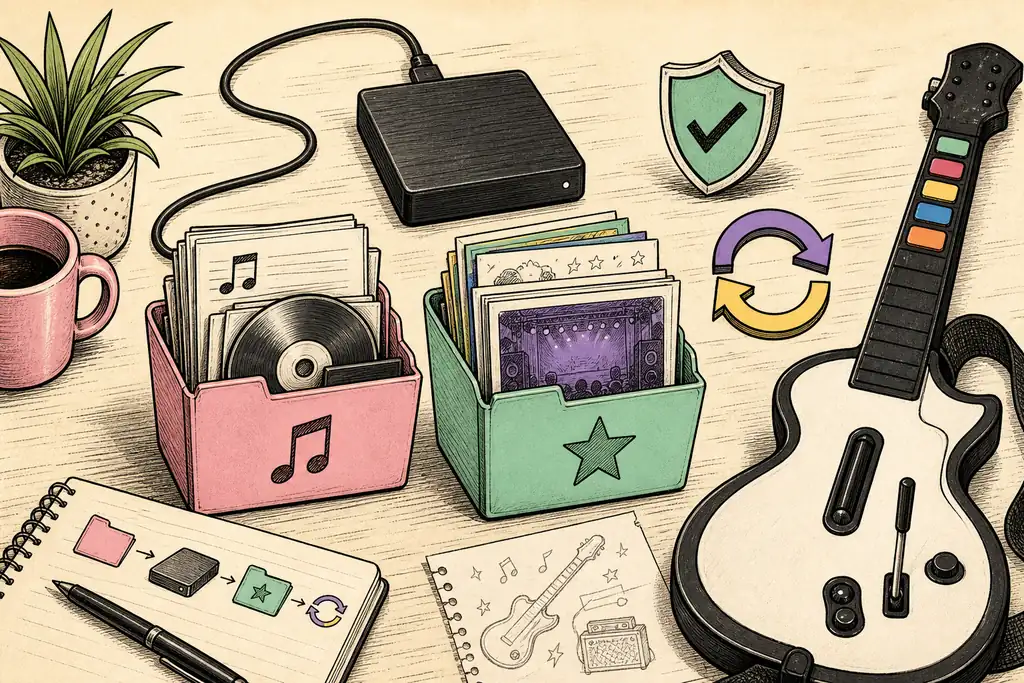
- Songs folder and any second library used on an external drive
- Custom folder, including highways, colors, backgrounds and other visual assets
- Settings, profiles, local scores and notes about configured song paths
- The installed version, package source and date of the backup
- A small test chart or known-good folder that can confirm the new installation works
Validate the update before restoring everything
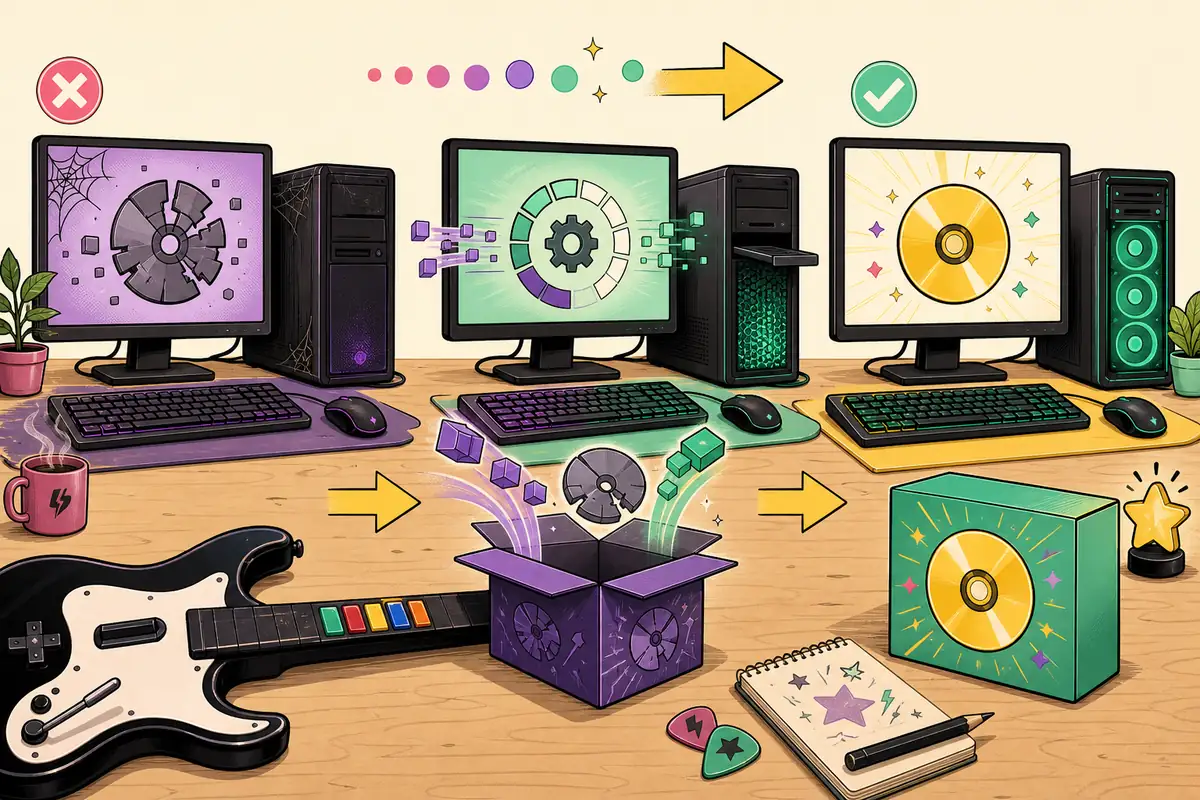
The first launch should be intentionally boring. Check that the application opens, the input device is detected, audio plays, notes are visible and the version shown by the game matches the release you selected. Then add one known-good song path and run Scan Songs.
If a song is missing, do not immediately reinstall the game. Check the active song path, the extracted folder depth, the chart files and the game’s bad-song report. The Clone Hero troubleshooting guide is the better destination for a symptom such as no songs, two-second playback, no audio or missing controller input.
Restore custom content after the base game and one song work. Add highways, colors and other assets in small groups, rescan between groups and keep a note of the last change. This makes an incompatible asset identifiable and protects the clean installation you just verified.
- 1
Launch
Open the new build with the backup still untouched.
- 2
Input and audio
Check the controller, audio output and timing before importing a large library.
- 3
One chart
Add one known-good chart, scan the library and confirm notes and audio.
- 4
Custom content
Restore one visual-content group at a time and rescan after each change.
- 5
Record the result
Write down the working version, active paths and package source before deleting anything old.
Keep a rollback path when an update fails
A rollback is not a reason to use an anonymous old-version mirror. Keep the previous official folder or package, keep the new backup, and test the new build in a clean directory. If the clean build works, reconnect the library one path at a time; if it fails before content is restored, investigate the package, permissions or platform environment instead.
When songs vanish after an update, compare the active path shown inside the current game with the path in your backup. When only one song fails, use the chart and bad-song checks; when every song is missing, treat it as a path or scan problem. Avoid opening the same writable library from multiple installations while you compare versions.
Once the new build is stable, keep one tested backup and remove abandoned duplicates only when you are sure they contain nothing unique. Record the release tag, platform package and date. That small maintenance note makes the next Clone Hero update much easier to verify.
Clone Hero update FAQ
What is the latest verified Clone Hero version?
The official homepage and GitHub release metadata checked on August 5, 2026 listed v1.1.0.6142, with the release tag v1.1.0.6142-final. Check the official source again before every update because release availability can change.
Do I need the Clone Hero Launcher to update?
No. The Launcher is convenient for managed installation and updates, but an official standalone package can be installed in a new folder and tested before you remove the old build.
Will updating Clone Hero delete my songs?
It should not when Songs, Custom and settings are kept separately, but you should still back them up before changing the installation. A backup is more reliable than assuming an installer will preserve every user path.
Should I install a standalone update over the old folder?
Use a new test folder when possible. Leave the old official build untouched until the new version opens, accepts one song path and passes your input and audio checks.
What if the updated game opens but songs are missing?
Check the current Songs path, extraction depth and Scan Songs result first. If one chart fails, inspect that chart; if the whole library disappears, compare the active path with the backup before reinstalling.
Where should I get an older version for rollback?
Use an official release destination that you can verify, or the copy you kept before updating. Do not use a random mirror, torrent, premium launcher or modified APK as a rollback source.
Sources and verification
Official release and Launcher destinations were checked on August 5, 2026. The latest verified game version remains v1.1.0.6142.