
Clone Hero Controller Guide: Compatible Guitars, Adapters and Setup
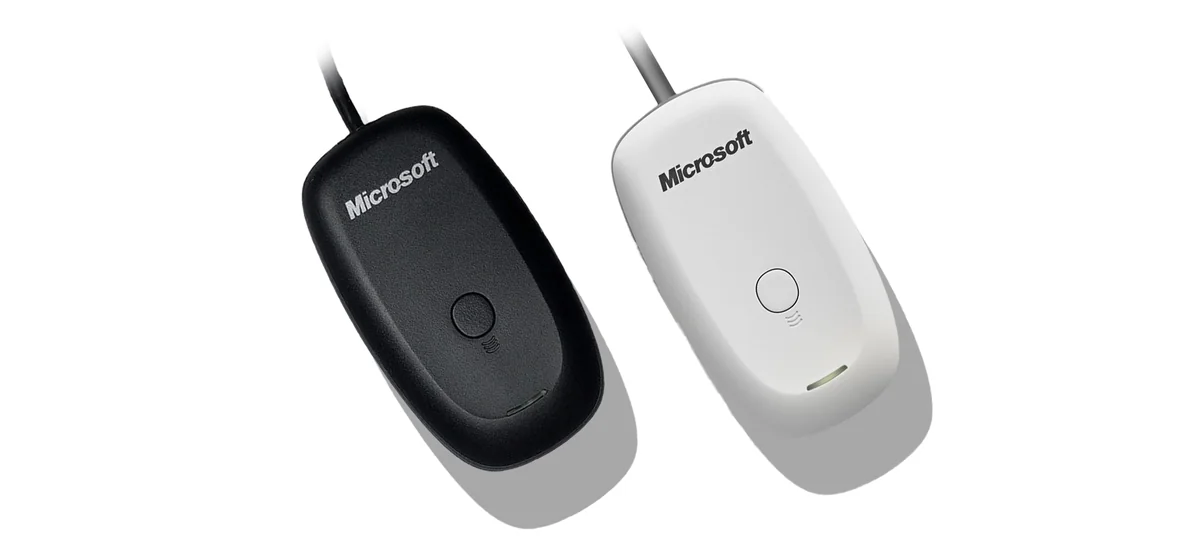
A wired USB or XInput guitar is usually the simplest Clone Hero controller. Wireless console guitars can also work, but the exact receiver, dongle or adapter matters more than the logo on the instrument.
The safest controller choice
For a first setup, choose a guitar that reaches the computer through normal USB or a known XInput-compatible receiver. Connect it before opening Clone Hero, assign it to the correct player, map every fret and action, then test strum, Start, Select and whammy before changing advanced settings.
A controller can be physically intact yet still fail because it uses the wrong console dongle, an unsupported Bluetooth path, a charge-only cable or an adapter that exposes incomplete inputs. Identify the original platform and connection method before installing drivers or replacing parts.
Which Clone Hero controller should you use?
The best controller is not automatically the newest or most expensive one. It is the guitar whose connection path is documented, whose frets and strum bar register separately, and whose receiver is available for your operating system.
| Controller type | What it normally needs | Setup outlook |
|---|---|---|
| Wired USB guitar | A working data-capable USB cable | Usually the lowest-friction option because no wireless pairing is required. |
| Xbox 360 wireless guitar | A compatible Xbox 360 wireless receiver | Common choice on Windows; pair the guitar to the receiver before mapping. |
| Wii guitar | A Wii Remote Bluetooth route or a purpose-built USB adapter | Can work well, but adapter quality, tilt and whammy support vary. |
| PlayStation 2 or 3 guitar | The matching original dongle or a compatible adapter | Do not assume every USB dongle works with every model. |
| Guitar Hero Live six-fret guitar | The correct platform dongle and a six-fret profile | Uses a different fret layout, so it should not be mapped like a standard five-fret guitar. |
| Keyboard or gamepad | Built-in keyboard input or a recognized controller | Useful for testing, accessibility and casual play, but the play style differs from a guitar controller. |
Connect the guitar, receiver or adapter first
Close Clone Hero before changing hardware. Plug the receiver or adapter directly into the computer, allow the operating system to finish device detection, then pair the guitar if the connection is wireless. Avoid an unpowered hub during diagnosis because a marginal hub can make a working controller disconnect or appear intermittently.
A USB charging cable is not always a USB data cable. If the controller lights up but never appears as an input device, test a known data cable and another direct port. For console-era wireless guitars, ordinary Bluetooth usually cannot replace the model-specific receiver unless the official or community setup explicitly documents that route.
On Windows, a correctly exposed Xbox-style device often appears through XInput. On macOS or Linux, adapter and driver support may differ, so verify the device at the operating-system level before blaming the game. The Clone Hero Wiki compatibility resources remain the best model-by-model starting point.
- 1
Identify the original platform
Record whether the guitar was made for Xbox 360, Xbox One, Wii, PlayStation 2, PlayStation 3, PlayStation 4 or Guitar Hero Live.
- 2
Match the receiver or adapter
Use the original dongle where required, or a well-documented adapter that supports the guitar's buttons, strum, whammy and tilt inputs.
- 3
Confirm operating-system detection
Check that button or axis activity appears outside Clone Hero before opening the game's controller mapper.
- 4
Launch Clone Hero and assign the player
Keep only the devices needed for the test connected, then assign the intended controller to the correct player profile.
Map frets, strum and menu controls
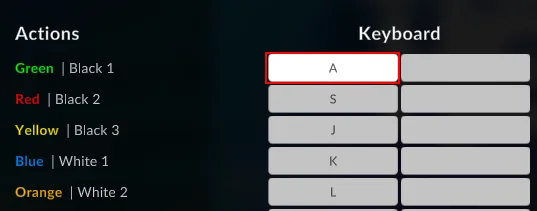
Do not assume a detected device is already mapped correctly. Assign each action deliberately and watch for duplicate inputs.
- 1
Open the controller mapping screen
Select the assigned controller and begin with Green, Red, Yellow, Blue and Orange. A six-fret Guitar Hero Live controller needs its own black-and-white layout.
- 2
Map strum up and down
Verify both directions register independently. If one direction repeats or never releases, test the hardware before adding software workarounds.
- 3
Map Start, Select and navigation
These controls are needed for profiles, pausing and menu recovery. Keep a keyboard available until the guitar can navigate reliably.
- 4
Test whammy, tilt and axes last
Analog inputs can require calibration, inversion or dead-zone changes. Finish the digital buttons first so axis noise does not hide a basic mapping problem.
Calibrate whammy, tilt and timing separately
Controller calibration and song timing calibration solve different problems. Use controller calibration when an analog whammy bar rests away from zero, moves in the wrong direction or reaches only part of its range. Use audio/video calibration when notes feel early or late even though the button press is detected correctly.
Start with default dead-zone and sensitivity values, move the axis through its full range, then adjust only enough to remove drift or recover usable travel. Large dead zones can hide noise but also make the whammy bar feel unresponsive. If the axis is reversed, use the invert control rather than remapping unrelated buttons.
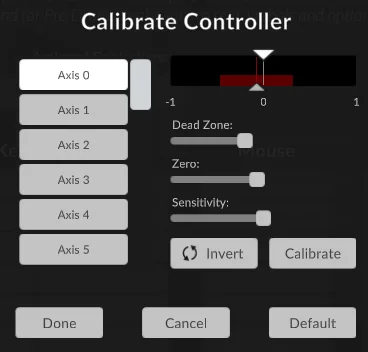
- Whammy moves by itself: increase the dead zone slightly after confirming the adapter is stable.
- Whammy moves backward: enable inversion for that axis.
- Whammy reaches only part of the meter: recalibrate the full travel and review sensitivity.
- Notes are consistently early or late: run the separate audio/video calibration workflow.
- Only one song feels wrong: inspect that chart before changing a global offset.
Xbox, PlayStation and keyboard controller mode
Clone Hero can be played with a gamepad or keyboard, which is useful when testing a fresh installation or when a guitar is unavailable. Map the fret actions to reachable buttons, assign strum or enable the relevant gamepad behavior supported by your profile, and keep the layout consistent enough that simultaneous notes remain possible.
A DualShock or Xbox controller problem should first be reduced to a detection question: does the operating system see the device, does Clone Hero list it, and does the mapper receive each button? Third-party remappers can help in special cases, but they can also create duplicate virtual devices. Test without extra remapping software before adding another input layer.
Keyboard play is also a useful control test. If the same profile and chart work on keyboard but not on the guitar, the song library is not the cause. Return to receiver, driver and mapping checks instead of rescanning songs or reinstalling the game.
Fix a Clone Hero controller that is not working
Change one layer at a time. A full reinstall rarely fixes a wrong dongle or failed strum switch, while random driver packages can make a simple mapping issue harder to diagnose. Save screenshots of the current mappings before replacing assignments, especially if several local players share the same computer.
For drum kits, MIDI notes, cymbal modes and kick mapping have different requirements. Use the dedicated Clone Hero drums setup guide rather than applying guitar-only assumptions to a drum profile.
| Symptom | Likely layer | Best next check |
|---|---|---|
| Controller never appears | Cable, USB port, receiver, driver or pairing | Confirm the device outside the game and test a direct USB port. |
| Controller appears but no buttons work | Player assignment or empty mapping | Assign the device, open controls and bind one known button. |
| One fret or strum direction is missing | Binding conflict or hardware switch | Remap that action, then test the input in the operating system. |
| One press triggers twice | Duplicate binding, virtual device or switch bounce | Remove duplicate assignments and disable remappers during diagnosis. |
| Whammy drifts or is reversed | Analog calibration | Set zero/dead zone, calibrate full travel and invert if necessary. |
| Wireless guitar disconnects | Receiver, power, pairing or interference | Use a direct port, repair the device and move the receiver away from noisy hubs. |
| Gamepad works in menus but not during songs | Profile or controller-mode mapping | Review the active profile and gameplay bindings rather than the song files. |
Clone Hero Controller FAQ
Which controller should I use with Clone Hero?
A wired USB or well-documented XInput guitar is the easiest starting point. Wireless console guitars can work when you have the correct receiver or dongle for the exact model.
Can I play Clone Hero with an Xbox controller?
Yes. Assign the gamepad to a player and map the fret, strum and menu actions. If it is not detected, test it in the operating system and remove duplicate virtual-controller software.
Why does my Xbox controller not work with Clone Hero?
The usual causes are missing player assignment, empty bindings, a charge-only cable, receiver or driver issues, or a second virtual device created by remapping software.
Can I use a PS4 or DualShock controller?
Yes when the operating system and Clone Hero recognize it. Map each action manually and test without extra remappers first so duplicate inputs are easier to identify.
How do I use a Wii guitar with Clone Hero?
Use a documented Wii Remote Bluetooth workflow or a purpose-built USB adapter. Support for whammy, tilt and latency varies by adapter, so verify those features before buying.
Do I need a dongle for a Guitar Hero controller?
Many wireless PlayStation and Guitar Hero Live guitars require their matching dongle. Xbox 360 wireless guitars normally require an Xbox 360 wireless receiver. Check the exact model rather than assuming a universal dongle.
How do I turn on controller mode in Clone Hero?
Assign the controller to the active player profile, open the controls screen and map the gameplay actions. Gamepad behavior depends on those profile bindings rather than a single universal hardware switch.
Why is my whammy bar moving by itself?
Open controller calibration, set the resting zero point and add a small dead zone. Recalibrate the full range and use invert only if the direction is reversed.
Sources and verification
Facts and download destinations were checked on July 20, 2026.