Clone Hero Drums Setup: Connect, Map and Calibrate
Use a compatible USB game drum kit or an electronic MIDI kit, map every pad before playing, then calibrate audio and video timing with a simple chart.
The reliable setup order
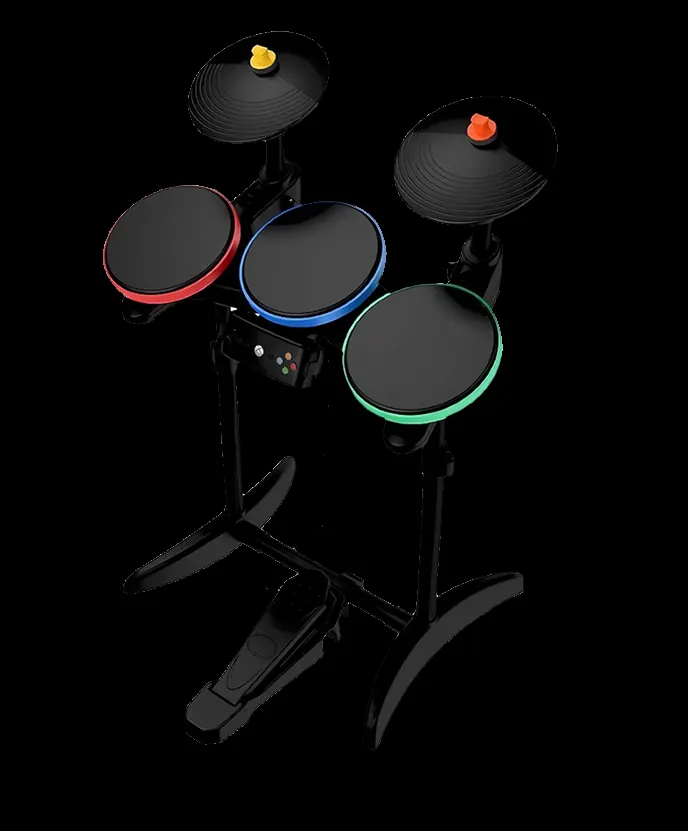
Connect the drum kit before launching Clone Hero, create or select a drummer profile, open the controller assignment screen and map kick, pads, cymbals and menu controls one by one.
Start with a five-lane drum chart, confirm every physical hit registers once, then run audio/video calibration. Do not troubleshoot missed notes until double-triggering, wrong mappings and latency are separated.
Which drums work with Clone Hero
USB Rock Band and Guitar Hero drum kits can work when the operating system recognizes the controller. Electronic kits usually connect through USB-MIDI or a MIDI-to-USB interface. Console wireless kits may need the correct receiver or adapter; Bluetooth alone is not a universal solution.
For game-branded controllers, compatibility depends on both the kit and the adapter. A PlayStation or Wii drum set does not become a standard USB device simply because a cable fits. Check the Clone Hero Wiki controller table, confirm the receiver model and avoid buying an unverified generic adapter that exposes only part of the kit.
For electronic drums, the important question is whether the module sends stable MIDI notes for every pad, rim, cymbal and pedal. Dynamic velocity is useful for the module, but Clone Hero mainly needs consistent note messages. Save a dedicated module preset so changes made for recording software do not silently alter the game mapping.
| Controller type | Connection | Best use | Watch for |
|---|---|---|---|
| USB game drums | Direct USB | Fastest setup | Platform-specific drivers or adapters |
| Electronic MIDI kit | USB-MIDI / MIDI interface | Adjustable pads and cymbals | MIDI note mapping and double triggers |
| Wireless console kit | Official receiver / adapter | Reusing an existing kit | Receiver compatibility |
| Keyboard test | USB keyboard | Checking charts and timing | Not a replacement for drum dynamics |
Connect and assign the drum controller
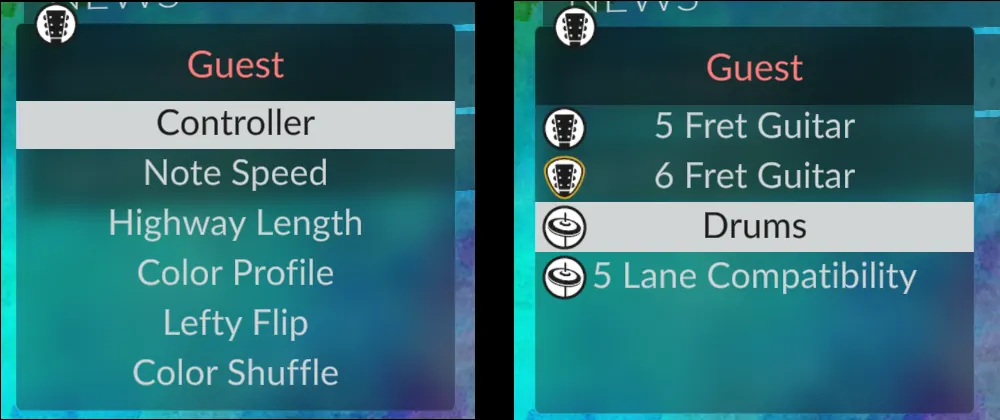
Plug the controller in before opening the game. In the profile/controller screen, choose the detected device and assign controls manually instead of assuming an old console layout will match. If Windows shows several devices, disconnect unused controllers during the first setup.
Open the operating system controller or MIDI monitor before blaming the game. Confirm that each pad appears, that the kick pedal is not sharing a note with another input and that the device stays connected. On a desktop PC, use a rear motherboard USB port during diagnosis instead of an unpowered hub.
Create a separate drummer profile even if the same person also plays guitar. This keeps drum mode, navigation controls and calibration choices easier to review. Bind Start, Select and directional navigation so menus can be used without reaching for the keyboard between songs.
Map pads, kick and cymbals
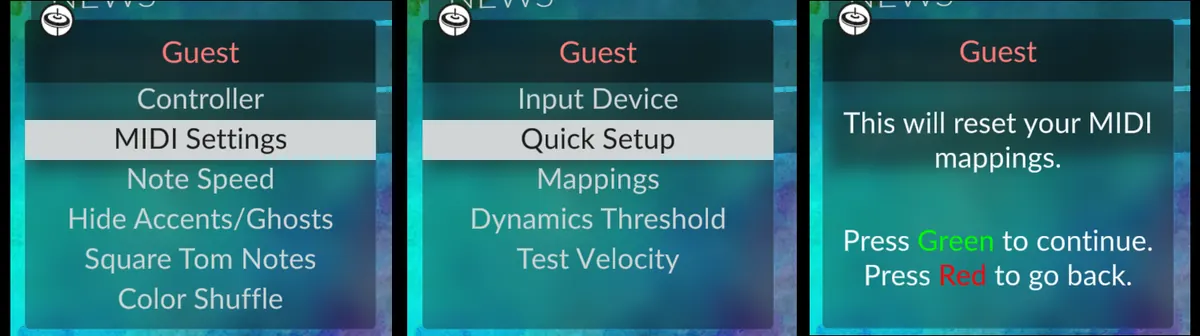
Map one physical input at a time: red snare, yellow/blue/green pads, kick pedal, cymbals and navigation. Strike firmly but only once. If one hit records two inputs, reduce the kit module sensitivity or disable duplicate MIDI notes before changing game calibration.
A practical mapping pass starts with navigation, then kick, red, yellow, blue and green pads, followed by cymbals. After each assignment, return to the input test and strike neighboring pads. If hitting the snare also activates a tom, adjust crosstalk or threshold values in the drum module.
MIDI modules sometimes send one note for the pad head and another for the rim. That is useful only when the selected chart mode expects separate inputs. Avoid binding both notes to unrelated lanes just to make every signal do something; predictable mappings are more valuable than a crowded layout.
Choose four-lane or five-lane drums
Use the chart type the song was authored for. Four-lane pro drums normally separate cymbals from pads, while five-lane layouts follow Guitar Hero-style lanes. Changing mode does not convert a chart perfectly; choose matching drum charts and confirm the lane colors before a full song.
Four-lane pro drums use red, yellow, blue and green lanes with cymbal information layered onto yellow, blue and green. Five-lane drums use the Guitar Hero-style red, yellow, blue, green and orange layout. A chart can look playable in the wrong mode while producing confusing cymbal prompts or lane expectations.
When downloading custom songs, inspect the instrument list or chart metadata. A song marked guitar-only will not gain a real drum part from controller settings. Full-band packs and drum-filtered chart searches are better starting points for testing a new setup.
Calibrate audio, video and hit timing
First verify the mappings with a simple chart. Then use the game calibration tools in a quiet section and repeat the test. Wireless audio, televisions with image processing and USB hubs can add delay. Prefer wired headphones or game mode while diagnosing timing.
Calibration compensates for the time between a note being displayed, the audio reaching you and the game receiving the hit. It cannot repair a pad that sends intermittent or duplicate signals. Record a short phone video in slow motion only if the built-in process remains inconsistent; compare the strike sound, screen target and registered hit.
Test the same easy section after every major hardware change. Switching from television speakers to Bluetooth headphones or enabling image enhancement can change perceived timing. Keep one known-good wired setup as a baseline, then change one variable at a time.
Fix common Clone Hero drum problems
No input: reconnect before launch and check the operating system device list. Wrong colors: remap manually. Double hits: lower module sensitivity or crosstalk settings. Missed cymbals: verify pro-drums mode and MIDI notes. Notes feel late: test wired audio and recalibrate.
If the device disappears after sleep or a restart, reconnect it before launching the game and verify power-saving settings for the USB controller. If only one cymbal fails, use a MIDI monitor to compare its note with the working cymbals. If menus scroll continuously, a pad or axis may be held; clear the binding and assign navigation again.
For random misses during dense sections, compare the same chart with keyboard inputs. Clean keyboard timing points toward the drum signal, USB path or module settings; identical misses point toward chart difficulty, calibration or performance. Keep notes about the working adapter, firmware, module preset and calibration values before updating drivers or moving the installation.
Clone Hero Drums Setup: Connect, Map and Calibrate FAQ
Can you play drums on Clone Hero?
Yes. Clone Hero supports drum gameplay with compatible game drum controllers and many electronic MIDI kits after the controls are mapped.
Do electronic drums work with Clone Hero?
Many USB-MIDI kits work. Connect the module, select the MIDI device and map the notes produced by each pad, cymbal and kick pedal.
Why does one drum hit trigger twice?
The usual causes are high pad sensitivity, crosstalk, two MIDI notes from one pad or duplicate bindings. Fix the controller signal before changing latency.
Should I use four-lane or five-lane drums?
Use the mode that matches the chart. Rock Band-style pro drum charts are usually four-lane; Guitar Hero-style drum charts commonly use five lanes.
How do I reduce drum latency?
Use wired audio, enable game mode on the display, avoid unnecessary USB hubs and run audio/video calibration after confirming the mappings.
Where can I find drum charts?
Use trusted Clone Hero chart libraries and filter for drums or full-band charts. The site song guides explain safe chart sources and installation.
Sources and verification
Facts and download destinations were checked on July 20, 2026.